Create Quality Content from TubeOnAI and Use Gemini to Convert Content to Widgets (Plus a Workflow for Small Businesses and Nonprofits)
If you run a small business or a nonprofit, you already know the struggle: you learn things, you create content, you attend trainings, you collect notes, and then… you just end up with more files. More docs. More half-finished ideas. More “someday we’ll turn this into something useful.”
TubeOnAI is one of those tools that tries to solve that exact problem. It takes a source (a PDF, an article, a YouTube video, audio, social clips, even your Google Drive files) and turns it into multiple types of learning and marketing assets: audio summaries, mind maps, flow charts, flashcards, quizzes, infographic slide decks, and more.
In this article, I’ll break down a practical workflow you can use right away, including how to use Google Gemini to convert exported diagrams into embeddable “widgets” for your website. I will also call out the kinds of improvements that matter when you are building content for workshops, courses, fundraising education pages, or internal staff training.
Ready? Let’s make content creation feel less like a chore and more like an assembly line you can customize.
Why TubeOnAI feels different (especially for small teams)
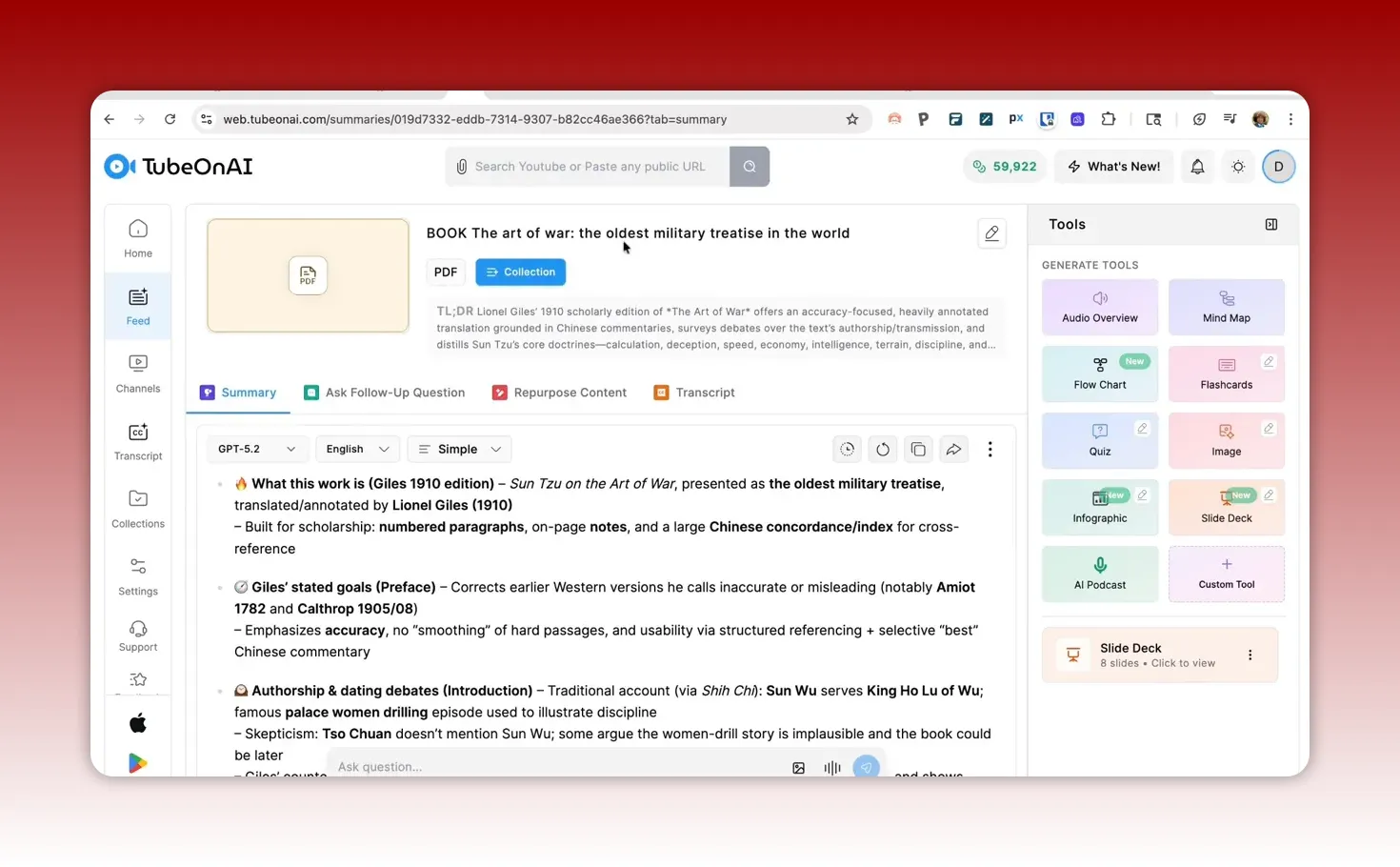
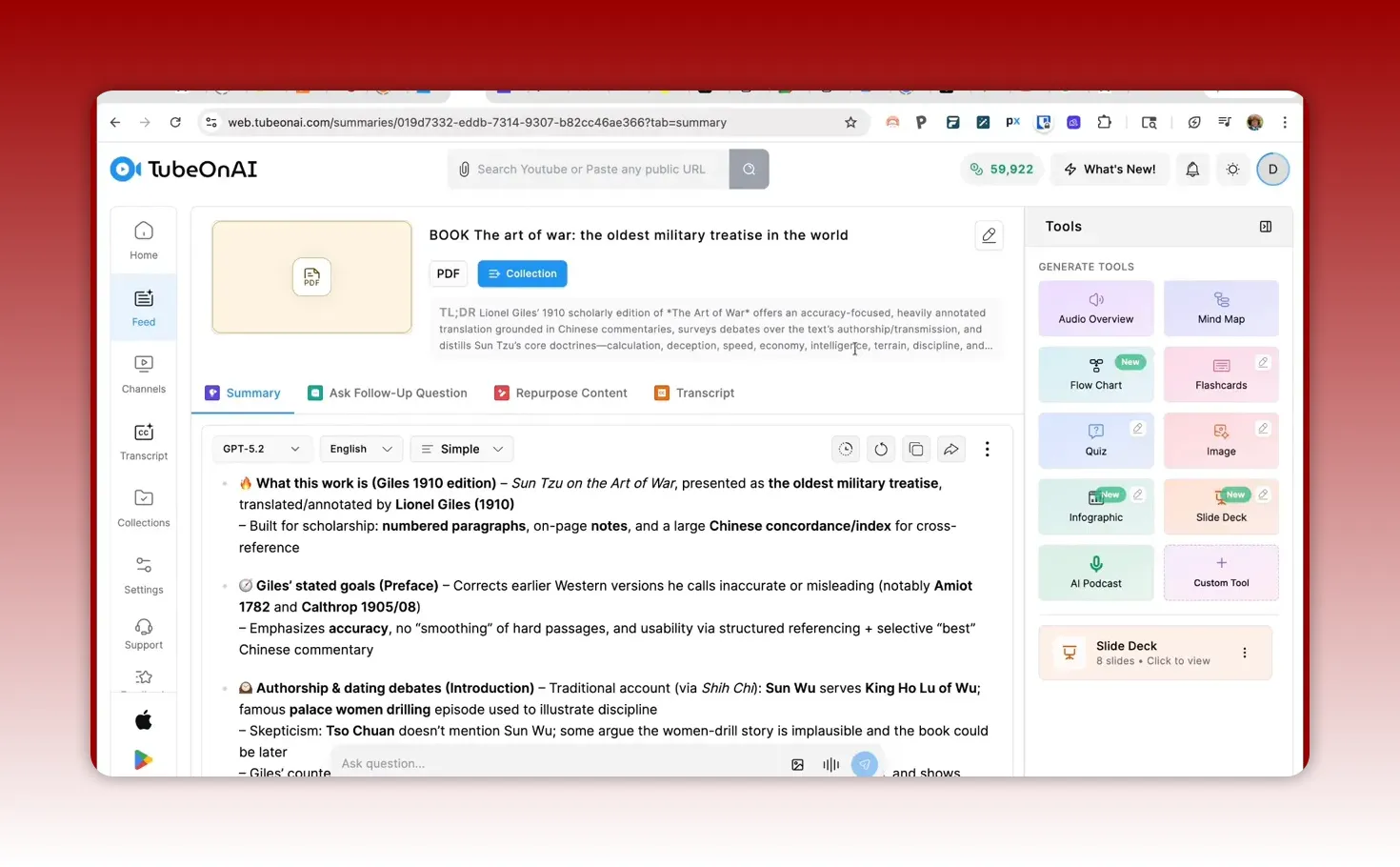
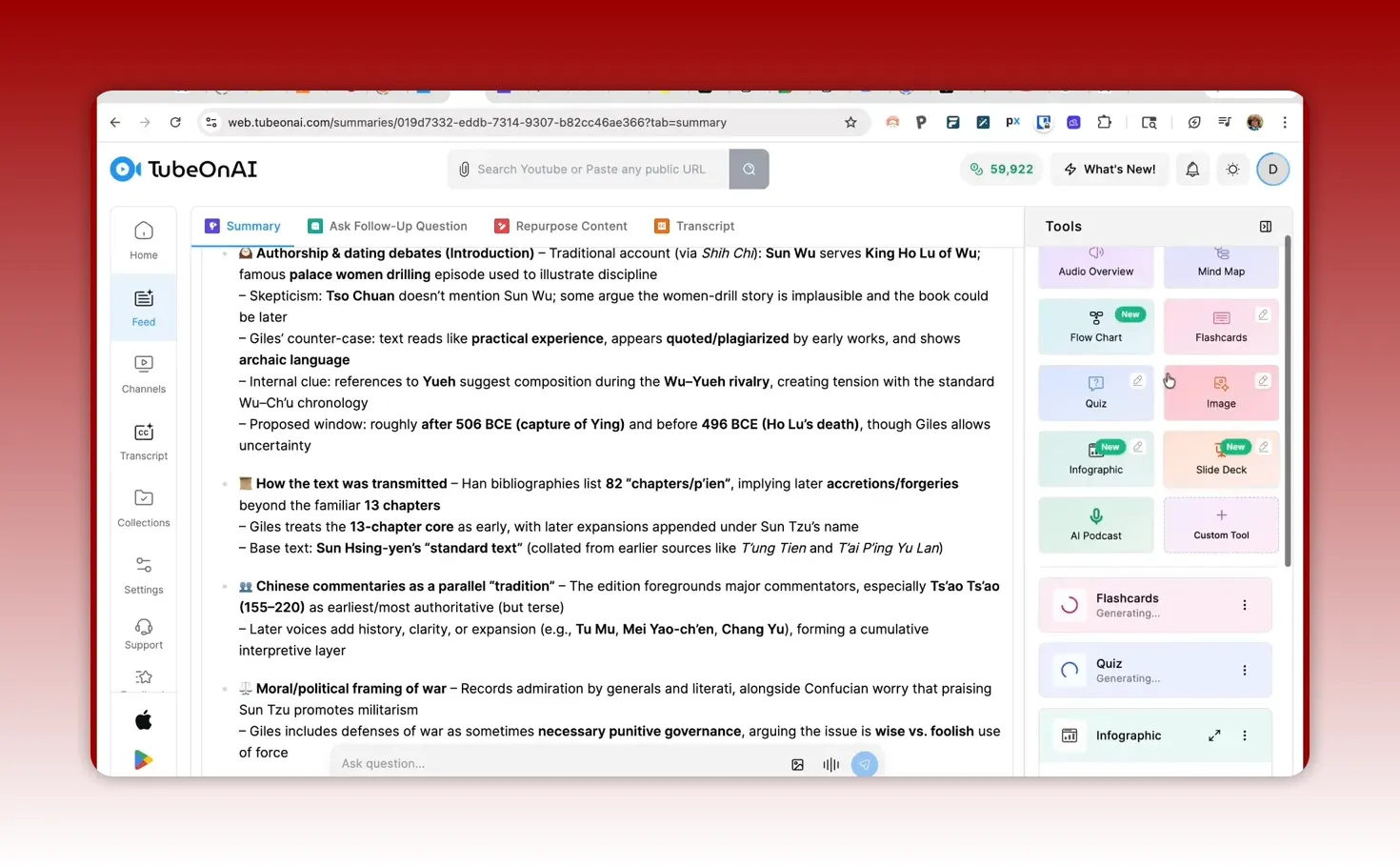
TubeOnAI’s interface got an upgrade, and the big win is that it gives you a menu of tools on the right-hand side after you upload content. That matters, because most people do not want a single output. They want multiple formats they can reuse across channels.
Here is what TubeOnAI can generate from an uploaded book (in the demo, it used the 1910 Lionel Giles edition of The Art of War):
Audio overview (text-to-voice style)
Mind map
Flow chart (structured as a decision-tree-like diagram)
Flashcards (downloadable)
Quiz (downloadable)
Infographic slide deck (downloadable)
AI podcast (more conversational than the audio overview)
Editable sections inside the slide deck before you export
TubeOnAI also feels familiar if you have used Notebook LM, because it builds off similar ideas: taking one source and generating multiple learning artifacts.
But there are two practical advantages that stand out for small businesses and small nonprofits:
More control over models. You can choose your LLM model (instead of being locked into one behavior pattern).
Reusable prompt templates. The tool appears to save customized prompts so you can reuse them without rebuilding everything from scratch each time.
The core workflow: upload once, generate many
The fastest way to think about TubeOnAI is: upload a source, then decide what outputs you need. Even if you only generate one or two asset types, the workflow is still valuable because it turns your knowledge base into something you can deploy across your organization.
Step 1: Upload a single “source of truth” file
In the example, a book PDF was used. For small teams, that can look like:
A staff training manual PDF
A fundraising guide or donor education packet
A workshop handout or workbook
A report, case study, or policy document
A YouTube recording of a training you already run
TubeOnAI also supports a broad set of sources, including social media clips, audio files, video files, text files, and content pulled from Google Drive.
Step 2: Pick an output type (and generate in parallel)
In the demo, multiple tools were generated. You can do this approach when you know you will reuse the same content across formats. For example:
Generate a slide deck for presentations
Generate flashcards for internal training
Generate a quiz to test comprehension
Generate an audio overview or podcast-style summary for busy stakeholders
That parallel generation is especially helpful when you are juggling deadlines and limited staff capacity.
Infographic slide decks: how the “presentation first” approach helps
One of the most immediately useful outputs was the infographic slide deck. The tool proposed a set of slides based on how it interpreted the book content, and the presenter left it at eight slides for the demo.
There are built-in templates and styles. The demo described four templates (including a general template and a modern template) and multiple layouts inside each. The practical impact is that you do not have to start from a blank PowerPoint to get something usable.
Editable sections: where you can personalize for your mission
Another big advantage: the slide deck output includes editable sections. You can double-click and change text directly in the tool.
In the demo, the presenter updated a bit of text (like inserting today’s date). The editing had some quirks (some elements needed tweaks), and the presenter noted that for certain layout changes you may prefer to download and finish in PowerPoint.
Still, the ability to quickly customize even small details can matter a lot for nonprofits and small businesses. For example:
Replace generic examples with your program’s context
Update a date for a recurring training session
Adjust wording to match your brand voice
Add a call-to-action slide that fits your fundraising or outreach goal
Export formats: PDF or PowerPoint
You can download the slide deck as a PDF or a PowerPoint.
That export capability is critical for real-world use:
PDF for sharing to partners or posting on a website
PowerPoint for presenting live and making final edits
Audio overview vs AI podcast: choose the right “listening” format
TubeOnAI generated both:
Audio overview described as a more basic text-to-voice tool (one voice explaining)
AI podcast described as more like a conversation between two people
Audio is one of the easiest ways to repurpose content for stakeholders with less time. In small organizations, you often hear:
“I want the summary, but I cannot read this long document.”
“Can you make a short version for training?”
“We want something our team can listen to during commutes or prep time.”
In the demo, the AI podcast took a while (the presenter mentioned 41 minutes for a ~20-minute podcast output), but it sounded good and included a transcript as well. The transcript is useful because you can repurpose it into blog sections, staff notes, or social posts.
Flashcards and quizzes: a practical training loop
Flashcards and quizzes are not just “fun extras.” They are a way to turn information into a repeatable training loop. For a small nonprofit, that could mean onboarding volunteers. For a small business, it could mean consistent internal process training.
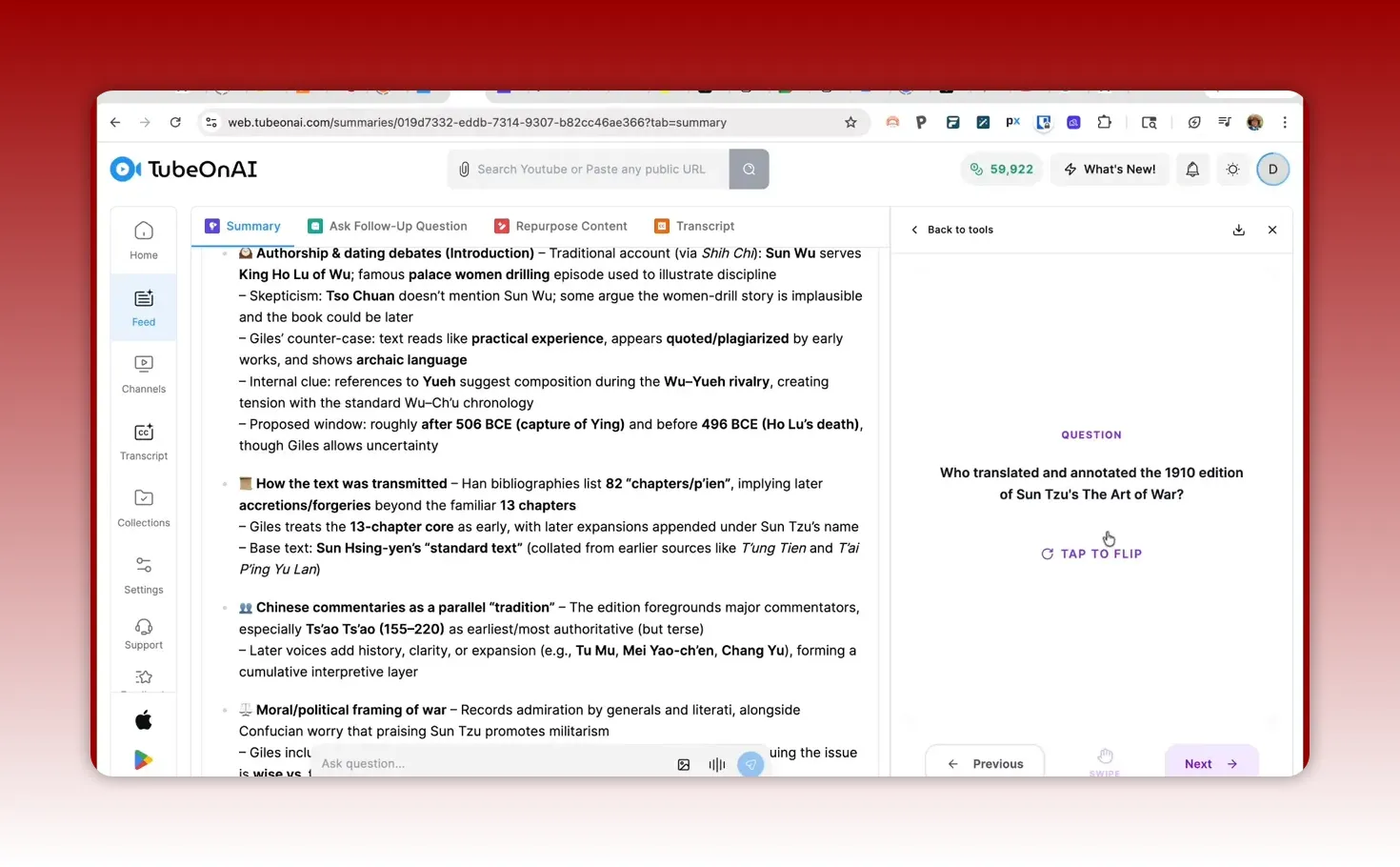
Flashcards: quick retention checks
The demo generated flashcards from the book content, including questions about the 1910 edition and Lionel Giles’ translation work.
One important usability detail: the presenter pointed out you can download flashcards and they download as a PowerPoint. That gives you a ready-to-use training artifact without building from scratch.
For organizations, flashcards are also an easy “start small” asset:
Use them for weekly training
Share them in a volunteer onboarding packet
Turn them into a 10-minute warm-up activity
Quizzes: comprehension and accountability
The quiz output was different from flashcards. It displayed answers on the screen and showed the correct option plus an explanation for why it is correct.
The quiz also downloaded as a PowerPoint, which makes it easy to:
present as a group
work through with staff or workshop participants
adjust font size and layout for readability
The presenter recommended best practices like using at least 18 to 20 font size for slide readability. That is a detail worth taking seriously if you teach workshops or run training sessions.
Mind maps vs flow charts: what is the difference and why it matters
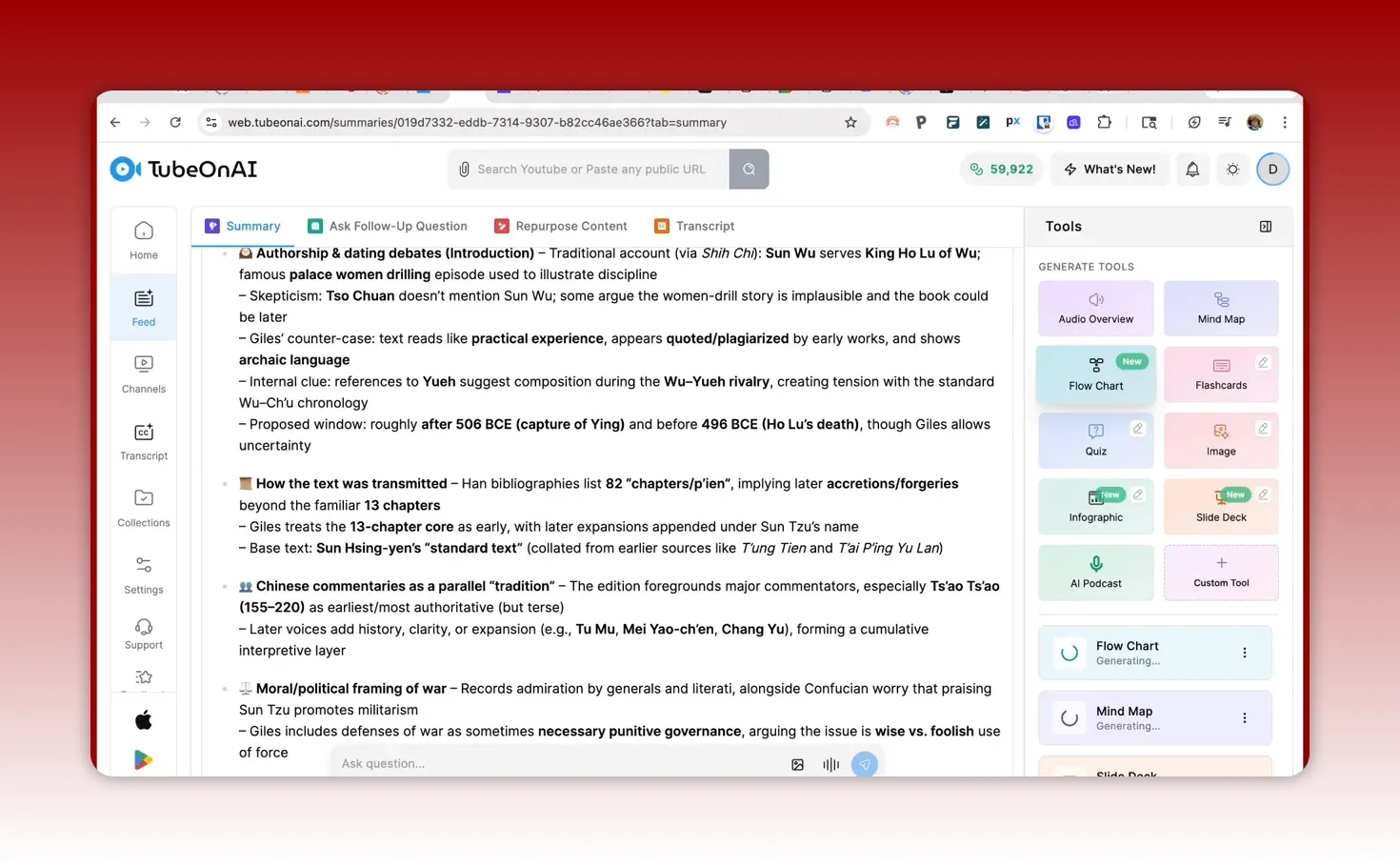
TubeOnAI generated both a mind map and a flow chart, and the presenter specifically looked at the difference.
Mind map: hierarchical connections
A mind map is typically organized as a set of connected branches. In the demo, it produced something structured like Notebook LM style thinking: multiple tools can generate outputs in parallel, and the mind map is used to show how ideas relate.
Flow chart: decision-tree structure
A flow chart is closer to a decision tree, which can be more useful when you are dealing with processes, triage, approvals, or branching logic in programs.
The presenter noted that in The Art of War there is not one single overarching decision flow, but there are multiple potential decision trees across sections. That means you may want to tweak the prompt so the flow chart reflects the specific decisions you care about.
This is where TubeOnAI can become more than content repurposing. It can help you visualize how your organization actually works.
Downloading diagrams and turning them into embeddable widgets with Gemini
The most “nerdy but useful” part of the workflow was what happened after exporting the diagrams.
The presenter tested the output by looking at what TubeOnAI exported and then using Google Gemini to recreate the mind map/diagram. The key takeaway is that the diagrams can be exported in a way that other tools can understand.
Export options include diagram formats and code
In the demo, the flow chart could be exported as:
PNG
SVG
Mermaid code
Mermaid is a format that many developers and diagram tools can render. Even if you do not code day-to-day, the idea is simple: you can export structured diagram logic, then recreate it in a different environment.
Using Gemini to recreate the structure
The presenter used Gemini to recreate the mind map and found that the structure was accurate and the tiers matched correctly. The lines did not always align perfectly, but the output could be reconstructed based on the exported structure.
More importantly for a real website workflow, the presenter noted that you can:
ensure the canvas feature is enabled
take those files or representations and recreate interactive diagrams
share or embed them on your site
The presenter specifically planned to embed the updated flow chart into a Fusebase page and include it in the description for others to check out. Even if you do not use Fusebase, the concept holds: exported diagrams can become website assets, not just downloadable pictures.
Infographics: content quality and what to check
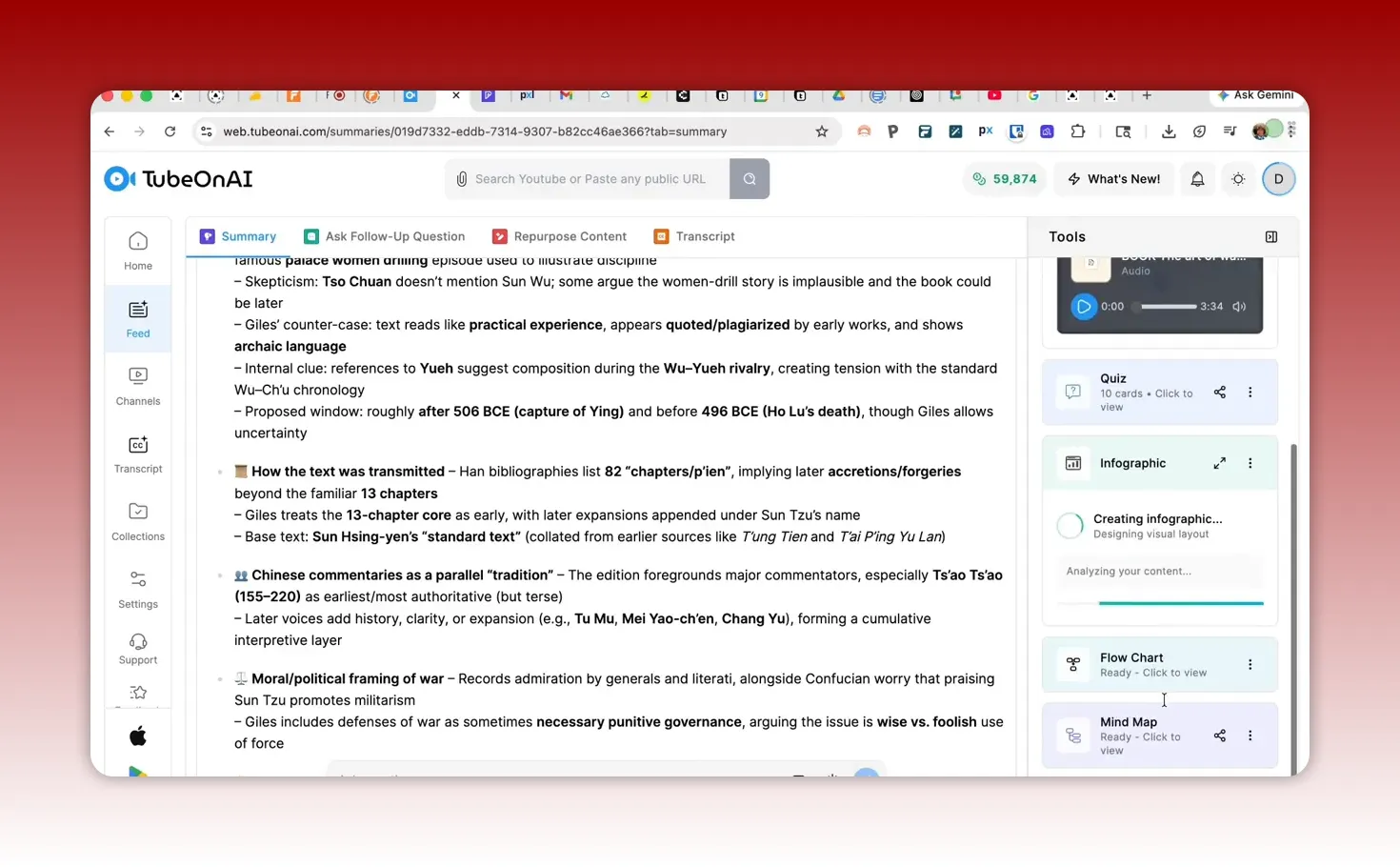
TubeOnAI generated an infographic as part of the flow. In the demo, the infographic generation was described as “pretty basic,” but it worked and produced something usable.
The presenter also looked for errors. They noted that there were no obvious spelling errors. That is a key quality check, because AI-generated visuals can sometimes introduce subtle mistakes that are easier to miss in a diagram than in a text document.
If you are using AI-generated diagrams for public-facing content (like donor education pages or program guidance), you should always do a quick review for:
names and proper nouns
punctuation in headings or labels
consistency with your existing terminology
any branching logic that could mislead people if wrong
Time, credits, and choosing a tier (so you do not waste budget)
TubeOnAI is available through AppSumo (as described). If you are a small business or nonprofit, this is the part you care about most: cost predictability.
The presenter described credits used in the demo. They started with 60,000 credits and used 207 credits for the work done in that session. They also pointed out that the book used was long, and the tool summarized it effectively.
TubeOnAI tiers were described like this (as presented):
Lowest tier: 3,000 credits per month, 3 auto summaries per month, access to 3 AI models
Second tier: 10,000 credits per month, 10 channel subscriptions or auto summaries, 8 AI models
Tier 3 (noted in the demo): 60,000 credits per month, unlimited channel subscriptions and auto summaries, access to all models, plus real-time voice chat and multimodal AI chat
They also mentioned real-time voice chat and multimodal AI chat in the context of higher tiers, and auto summaries through channel subscriptions.
The practical guidance for your team:
If you mainly repurpose documents and generate assets occasionally, you likely do not need the highest tier.
If you are automating content from YouTube channels regularly or producing frequent training updates, higher tiers may save real time.
Auto summaries from YouTube and other platforms: building an always-on knowledge pipeline
TubeOnAI’s functionality is not limited to manual uploads. The presenter mentioned that you can connect your YouTube channel and also pull content from channels you subscribe to.
Then you can generate auto summaries for content that people publish. Delivery can happen via email or phone (in multiple increments). You can set it on a schedule like daily, weekly, or monthly.
This is especially relevant for small nonprofits and small businesses because it turns “inspiration” into structured assets:
Leadership can get digest summaries from key creators
Program staff can review education content trends
Marketing can convert summaries into newsletter sections or blog drafts
Training can be refreshed without starting from zero
And while the demo started with a PDF, it emphasized that you can start from many formats including:
Instagram reels
TikTok videos
podcasts
blog posts or articles
audio files and video files
social video content
images, PowerPoints, and Google Drive files
If your organization already has content scattered across platforms, TubeOnAI is a way to unify that into a consistent “asset engine.”
A practical content plan you can run with this workflow
Here is a simple plan you can adapt depending on your role and audience. This is built from the same elements used in the demo: slide decks, quizzes, flashcards, flow charts, and audio summaries.
For nonprofits (program education and volunteer onboarding)
Upload: your program guide PDF or training manual.
Generate: slide deck for orientation sessions.
Generate: flashcards for quick learning and retention.
Generate: quiz for volunteer comprehension and accountability.
Generate: flow chart for decision processes (intake, eligibility triage, referral routing).
Optional: audio overview for people who prefer listening.
Export diagrams: use Gemini to recreate and embed widgets on your website for explainer content.
This turns one training document into a whole onboarding system.
For small businesses (internal training and product education)
Upload: a process document, training workbook, or product guide.
Generate: infographic slide deck for onboarding or sales enablement.
Generate: quiz to test knowledge before people go live.
Generate: mind map to visualize the knowledge structure for internal documentation.
Generate: flow chart for branching workflows (support tickets, escalations, QA checks).
Export and embed: put decision diagrams into landing pages or internal portals using exported formats and Gemini recreation.
You get more consistency across teams without spending hours building materials from scratch.
Quality control checklist (so AI assets earn trust)
Because these assets can be used in training or public-facing materials, you want a lightweight quality control pass. The demo highlighted that infographics had no obvious spelling errors in that case, but it also referenced that AI outputs sometimes contain subtle issues (like punctuation in names).
Use this checklist before you publish or roll out training:
Names and key terms: scan for correct spelling and consistent terminology
Accuracy of explanations: confirm that quiz explanations match your real policy or process
Branch logic: for flow charts, check that “if-then” paths reflect reality
Brand voice: edit slide headings and calls-to-action to match your organization
Readability: increase font size in slide exports if needed (the demo suggested 18 to 20)
The point is not perfection. It is trust. A quick review keeps your AI outputs reliable.
What to do next: a “starter pack” for your first week
If you are picking this up and want an immediate win, here is a simple first-week plan. It uses only the capabilities demonstrated:
Pick one existing source: a PDF or a video recording of an internal training.
Generate: an infographic slide deck and download it.
Generate: flashcards and a quiz.
Generate: a flow chart based on one decision process your team uses.
Export diagram: export as PNG, SVG, or Mermaid code.
Recreate with Gemini: generate an embeddable version and test it in your website builder.
Run one session: use the quiz or flashcards with a small group, then adjust the content you edit.
After that, reuse your prompt templates and build a small library of assets that keep paying dividends.
FAQ
What kinds of content can TubeOnAI generate from?
TubeOnAI can generate content from multiple sources, including PDFs, YouTube and other social video formats, audio files, video files, blog or article text, images, PowerPoints, text files, and even content pulled from Google Drive (based on what was described).
What outputs does TubeOnAI create after uploading a document?
In the example, it created audio overview, mind maps, flow charts, flashcards, quizzes, infographic slide decks (with templates and editable sections), and an AI podcast-style audio summary. Outputs can typically be downloaded (including PowerPoint exports for flashcards and quizzes).
Can I edit the generated slide deck before downloading?
Yes. The slide deck includes editable sections where you can double-click and change text. Some formatting adjustments may still be easier after downloading into PowerPoint.
Are flashcards and quizzes downloadable?
Yes. The demo showed flashcards and quizzes downloading as PowerPoint files, which you can then present and share with others. Font size and minor layout tweaks may be needed for best readability.
How are flow charts different from mind maps?
A mind map is more about connected branches and hierarchical relationships. A flow chart is more like a decision tree or process path. For organizations, flow charts are often better for “if-then” logic and operational decision processes.
How does Gemini help with diagrams and website widgets?
The demo indicated that TubeOnAI can export diagrams (including formats like PNG and SVG and diagram code such as Mermaid). Gemini can then recreate the diagram structure and help you render an interactive version that you can share or embed on a website using the canvas feature.
How do credits and tiers work?
Tiers include monthly credits, channel subscription or auto summary limits, and number of available AI models. In the demo, a session started with 60,000 credits and used 207 credits, but exact usage depends on what you generate and how long or complex the source content is.
Bottom line
TubeOnAI stepping up its interface and expanding the set of content tools makes it easier for small businesses and small nonprofits to move from “we have information” to “we have reusable assets.”
Upload once. Generate slides, quizzes, flashcards, maps, and diagrams. Export what you need. Then use Gemini to recreate and embed widgets so your website can do more than explain. It can help people decide, learn, and act.
If you want a content system that is practical, repeatable, and adaptable to your mission, this workflow is a strong place to start.
This article was created based on the video Create Quality Content from TubeOnAl & Use Gemini to Create Widgets.
TubeOnAI Outputs
AI Podcast
Infographic